
Download Capture Screen – Free Screen Recording Software for Windows & macOS
Overview
Capture Screen is a lightweight yet powerful screen‑capturing tool designed for anyone who needs to record video and audio from a computer with minimal hassle. Whether you are a teacher preparing a tutorial, a developer creating a product demo, or a support technician needing to illustrate a problem, Capture Screen offers high‑quality recordings in multiple resolutions and formats. The interface is deliberately simple: a single toolbar lets you start, pause, and stop recordings, while advanced options let you fine‑tune video quality, choose audio sources, and designate a custom save path.
The application supports hotkeys for quick access, prevents the display from sleeping during a session, and works on both Windows 10/11 and macOS High Sierra (and later). Because the program is free, it is an attractive alternative to paid solutions that lock essential features behind a subscription. In this review we will explore its core capabilities, walk through installation, discuss system compatibility, and weigh the pros and cons to help you decide if Capture Screen fits your workflow.
Key Features & Capabilities
- Full‑screen, window, or custom region recording – capture exactly what you need.
- Multiple video resolutions (480p, 720p, 1080p) with adjustable bitrate for optimal file size.
- Audio capture from microphone, system sound, or external sound card.
- Start/stop, pause/resume, and timed recordings for flexible sessions.
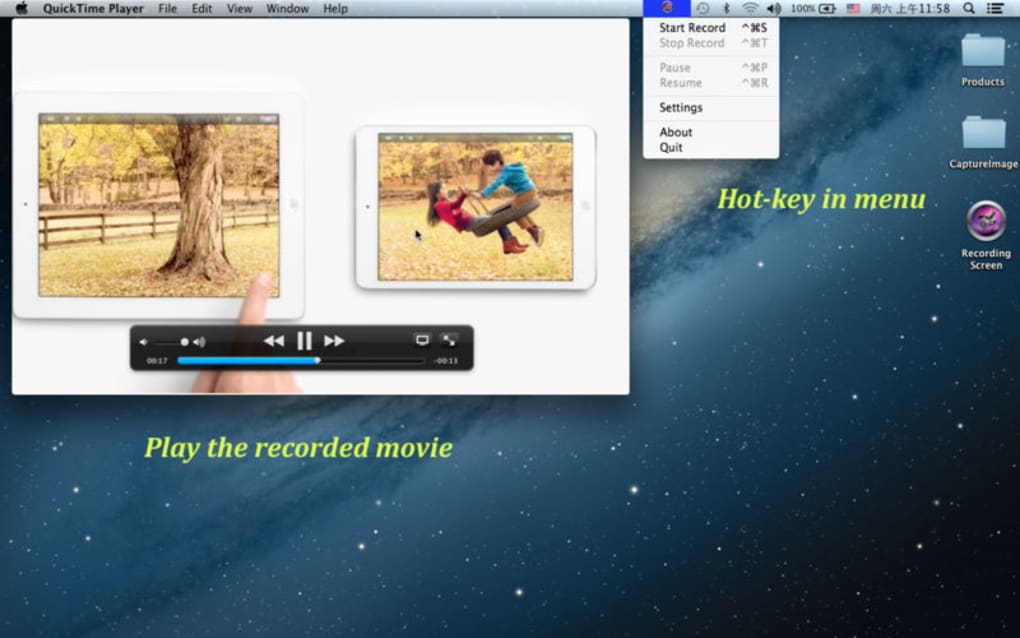
- Hotkey support for instant control without leaving the current application.
- Option to prevent display sleep while recording to avoid unwanted interruptions.
- Customizable output folder – keep your recordings organized the way you prefer.
- Built‑in video preview and simple trimming tools for quick edits.
- Lightweight installer under 30 MB, ensuring fast download and minimal disk impact.
- Free for personal and commercial use – no hidden fees or trial limitations.
Beyond the list above, Capture Screen integrates seamlessly with common productivity suites. For example, you can record a PowerPoint presentation while narrating with a headset, then export the video directly to YouTube or embed it into an LMS (Learning Management System). The software also respects privacy: it never uploads recordings to a cloud server unless you explicitly choose to share them, keeping all data stored locally on your device.
Users who need to create tutorials for software products will appreciate the ability to switch between audio sources on the fly – you might start with a microphone for an introduction, then switch to system audio to demonstrate in‑app sounds. The built‑in hotkeys (default: Ctrl + Alt + R to start/stop) are fully customizable, allowing power users to create a workflow that feels natural. Overall, the feature set rivals many premium tools while maintaining a free price tag.
Installation, Usage & Compatibility
Getting Capture Screen up and running is straightforward. Follow these steps for a smooth installation on either Windows or macOS:
Step‑by‑Step Installation
- Visit the official website and click the “Download for Windows” or “Download for macOS” button.
- Save the installer (CaptureScreen_Setup.exe for Windows, CaptureScreen.dmg for macOS) to your preferred folder.
- For Windows, double‑click the .exe file, accept the license agreement, and choose the installation path (default is C:\Program Files\CaptureScreen). Click “Install” and wait a few seconds.
- For macOS, open the .dmg file, drag the Capture Screen icon into the Applications folder, and eject the disk image.
- Launch the application; on first run you may be prompted to allow screen recording permissions (macOS) or to run as administrator (Windows). Grant the necessary permissions to enable full‑screen capture.
First‑Time Configuration
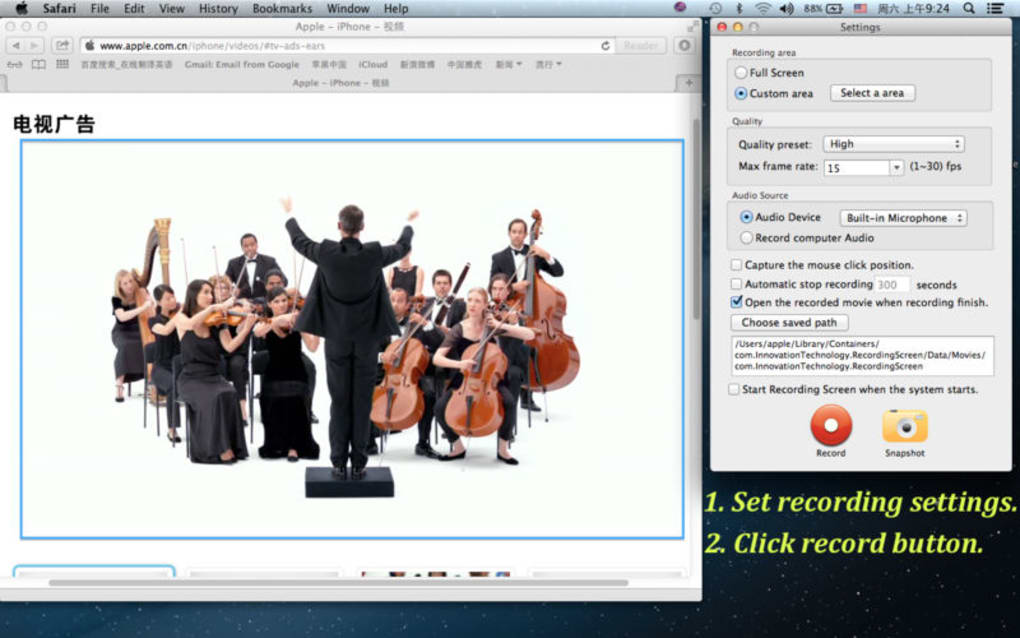
When the program opens, you’ll see a clean toolbar with three primary buttons: Record, Settings, and Help. Click Settings to configure:
- Video Size: Choose from predefined resolutions or set a custom width/height.
- Frame Rate: 30 fps is default; increase to 60 fps for smoother motion if your hardware permits.
- Audio Source: Select “Microphone,” “System Audio,” or “Both.” On macOS, you may need to install a virtual audio driver (e.g., BlackHole) to capture system sound.
- Hotkeys: Assign shortcuts for start/stop, pause, and screenshot.
- Save Path: Browse to a folder where all recordings will be stored automatically.
Recording Workflow
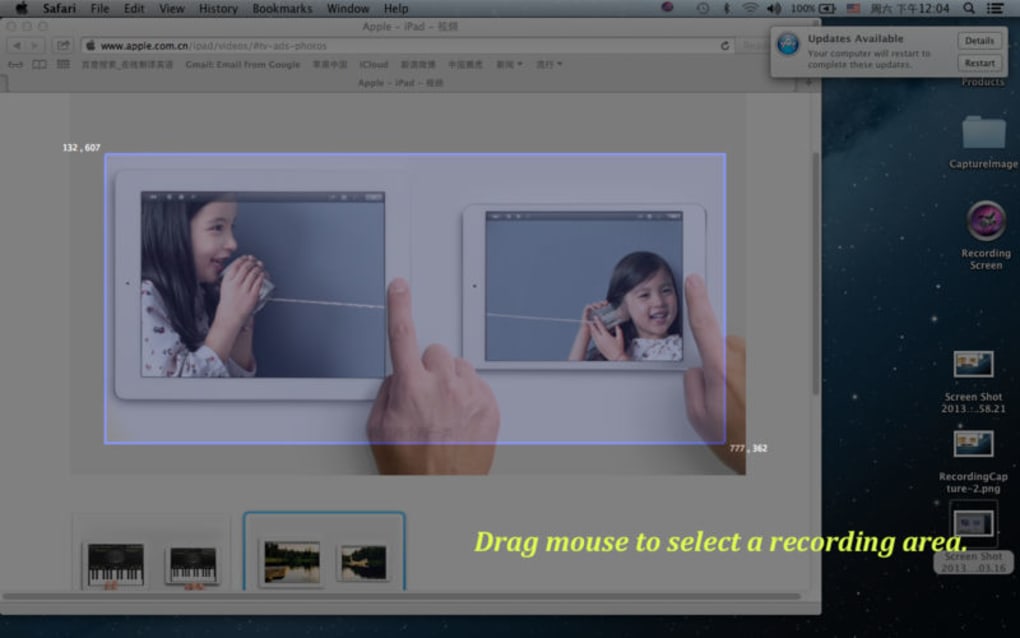
To start a recording, press the red Record button or use your defined hotkey. A small overlay appears, showing the selected capture area. You can resize the region by dragging the corners.
During the session, the overlay displays a timer and a pause button. If you need to pause, click the pause icon or hit the hotkey; the timer freezes while the video file continues to be written in the background. When finished, click Stop.
The software automatically opens a preview window where you can watch the clip, trim the beginning or end, and then click “Save” to finalize.
Compatibility: Capture Screen runs on Windows 10, Windows 11 (both 64‑bit) and macOS High Sierra (10.13) or later. The minimum hardware requirements are modest: a dual‑core CPU, 2 GB RAM, and 200 MB of free disk space. For high‑resolution recordings (1080p at 60 fps) a more powerful GPU is recommended to avoid dropped frames. The software does not have a native Linux version, but it can be executed via Wine with limited functionality.
Overall, the installation process takes under five minutes, and the intuitive UI means you can begin recording within seconds of launching the app. The program also checks for updates automatically, ensuring you receive the latest bug fixes and feature enhancements without manual intervention.
Pros, Cons & Frequently Asked Questions
Pros
- Completely free with no watermarks or time limits.
- Supports both Windows and macOS, covering the majority of desktop users.
- High‑quality video output with adjustable resolution and bitrate.
- Flexible audio capture options, including system sound and external devices.
- Hotkey customization speeds up workflow for power users.
- Lightweight installer and low system resource consumption.
Cons
- No built‑in advanced editing suite – only basic trimming is available.
- Lacks direct streaming capabilities (e.g., to Twitch or YouTube Live).
- MacOS system‑audio capture requires a third‑party virtual driver.
- No native Linux version.
- Customer support is limited to community forums and email.
FAQ
Can I record gameplay with Capture Screen?
Yes. Capture Screen can record any on‑screen activity, including games. For the best performance, set the frame rate to 60 fps and use the “Custom Region” mode to capture only the game window.
Is there a limit to the length of a recording?
There is no hard‑coded time limit. Recordings are only constrained by available disk space and the file system’s maximum file size.
How do I capture system audio on macOS?
macOS does not allow direct system‑audio capture. Install a virtual audio driver such as BlackHole or Loopback, set it as the input device in Capture Screen’s audio settings, and route the system output to that virtual driver.
Can I export recordings directly to YouTube?
Capture Screen does not include a built‑in upload feature. After recording, locate the file in your chosen save folder and use YouTube’s upload interface or any third‑party video manager.
Is my data safe when using Capture Screen?
All recordings are saved locally on your device. The software does not transmit data to external servers unless you manually share the files, ensuring privacy and security.
Capture Screen delivers a solid free solution for everyday screen‑recording needs. Its straightforward UI, reliable performance, and cross‑platform support make it a standout among free alternatives. While power users may miss advanced editing tools or direct streaming, the core recording capabilities are more than sufficient for educators, developers, and support staff. Overall, a 4.5‑star rating reflects its excellent value and ease of use.
Conclusion & Call to Action
If you’re searching for a secure, free, and easy‑to‑use screen‑capturing tool that works on both Windows and macOS, Capture Screen is a compelling choice. Its high‑quality video output, flexible audio options, and customizable hotkeys address the most common recording scenarios—from product demos and classroom tutorials to troubleshooting sessions. Although it lacks advanced editing and live‑streaming features, the trade‑off is a lightweight application that respects your privacy and never imposes hidden fees.
Ready to start creating polished videos without the hassle of a subscription? Download Capture Screen now and enjoy free, high‑definition screen recordings in just a few clicks. Don’t forget to explore the settings to tailor the experience to your workflow, and check the FAQ section if you run into any questions. Happy recording!







